Connect Mailchimp
Connect Mailchimp
Connect Mailchimp to Quicket to automatically add confirmed event guests to a Mailchimp audience.
This removes the need to repeatedly download your guest list and manually import new attendees into Mailchimp.
Connect your Mailchimp account
1
Open your Event Dashboard.
2
Go to Settings → Integrations → Mailchimp.
3
Select Connect My Mailchimp Account.
4
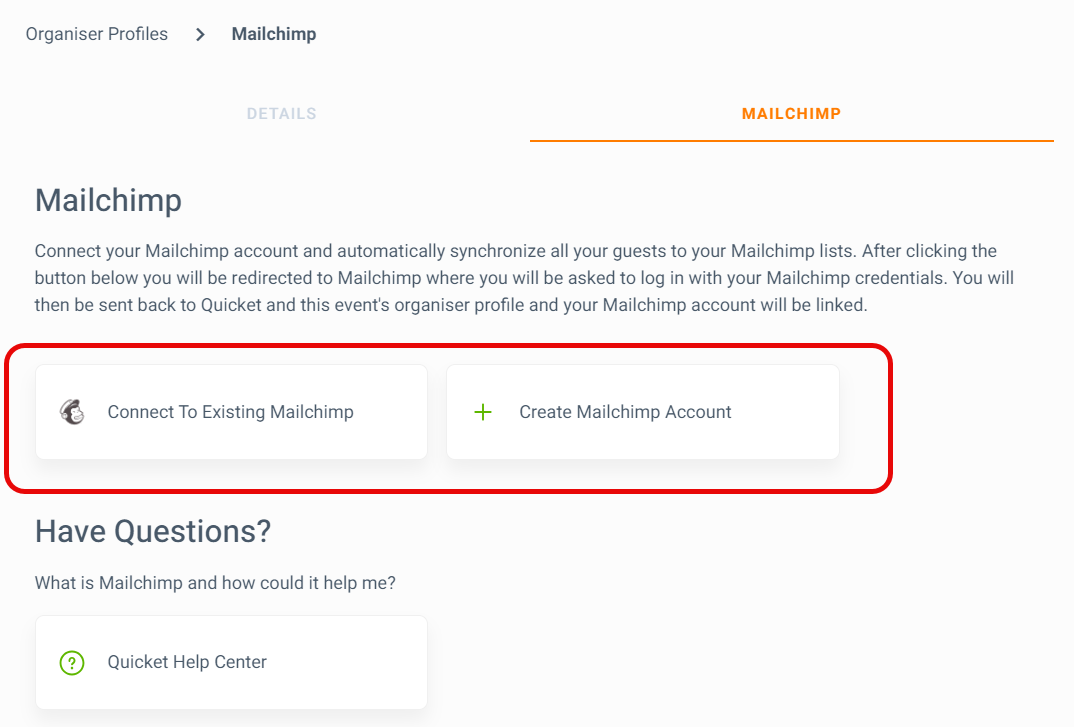
Choose Connect To Existing Mailchimp or create a Mailchimp account.
5
Log in to Mailchimp.
6
Return to Quicket.
7
Find the Mailchimp audience you want to use.
8
Select Link.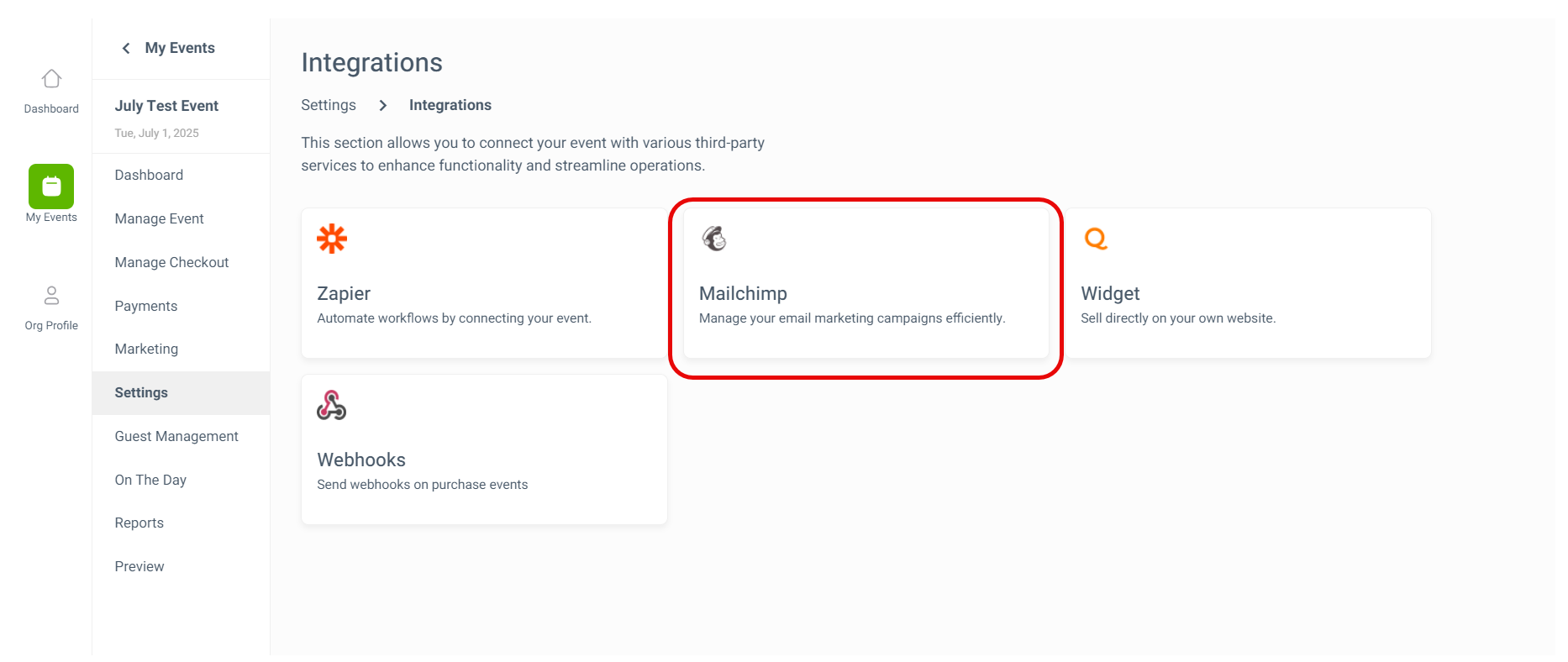
Confirmed guests will be added to the linked Mailchimp audience. New guests with new email addresses will also be added as they book.
Ask guests for marketing consent
If you intend to contact attendees for future marketing, give guests an appropriate opportunity to opt in.
Quicket provides the predefined Checkout Question:
Would you like the organiser to contact you in future?
You can add this from:
Manage Checkout → Checkout Questions
Always use guest information in accordance with applicable privacy and marketing laws.
What can I use Mailchimp for?
Once your audience is connected, you can use Mailchimp for ongoing event communication and marketing.
Event updates
Send attendees useful updates before the event, such as new event information, programme changes or important reminders.
Newsletters
Include opted-in guests in newsletters where this forms part of your communication and marketing strategy.
Future event announcements
Let eligible subscribers know about future events, new dates or upcoming ticket releases.
Marketing campaigns
Create and send marketing campaigns to the appropriate audience based on the permissions and consent you've collected.
Audience segmentation
Use Mailchimp's audience tools to organise and segment contacts where you need more targeted communication.
What’s next?
Continue setting up how you collect guest consent, track campaigns and communicate with attendees.