Cancel your event
Cancel your event
If your event will no longer take place, use Quicket's Cancel Event process to cancel the event and notify ticket holders.
Don't simply change the event details or stop ticket sales if guests have already booked.
Who can cancel an event?
Only the event owner can cancel or postpone an event.
If you've only been given user access, you won't be able to cancel it yourself.
If no tickets have been sold or issued, you don't need to use the cancellation process—you can simply close ticket sales.
Cancel your event
1
Log in to Quicket.
2
Go to Organiser Hub → My Events.
3
Select your event.
4
Go to Manage Event → Cancel Event.
5
Read the cancellation information carefully.
6
If you're cancelling a recurring event, select the schedules that need to be cancelled.
7
Type CANCEL into the confirmation field.
8
Confirm the cancellation. 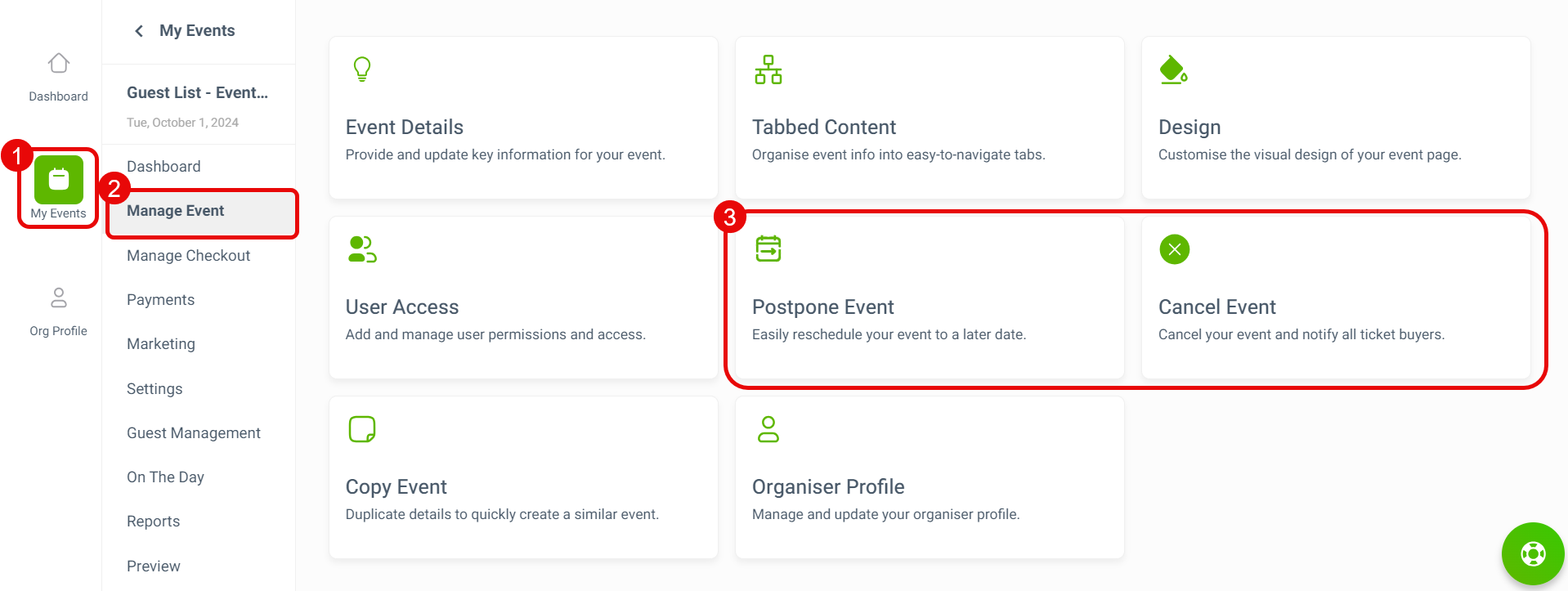
You can't cancel a recurring-event schedule that has already passed.
What happens to your event page?
Once cancelled, Quicket hides the event on its website so people can't search for or view the event page.
Quicket also recommends changing the event listing to Private so it isn't discoverable through internet search.
What happens to ticket holders?
Quicket emails ticket buyers to let them know the event has been cancelled.
Where Quicket processed the payment:
Card payments
Card payments are automatically refunded.
Instant EFT, SnapScan or Zapper
Buyers who paid using methods such as Instant EFT, SnapScan or Zapper receive instructions for completing their refund through their Quicket account.
Your own payment gateway
If ticket funds were processed directly through your own payment gateway, contact Quicket for assistance.
Need help cancelling?
If you're unable to cancel the event through your account, contact Quicket Support for assistance.
What’s next?
Review guest communication, refunds and the final financial position of the cancelled event.