Send RSVPs
Send RSVPs
Use RSVPs when you want to invite guests to attend for free but need them to confirm whether they're coming before receiving their tickets.
Send an RSVP
1
Open your Event Dashboard.
2
Go to Guest Management → Send RSVP.
3
Configure your RSVP settings.
4
Choose whether you're inviting one person or multiple people.
5
Add or upload the guest details.
6
Choose the ticket type and quantity they'll receive.
7
Select Send Invitations. 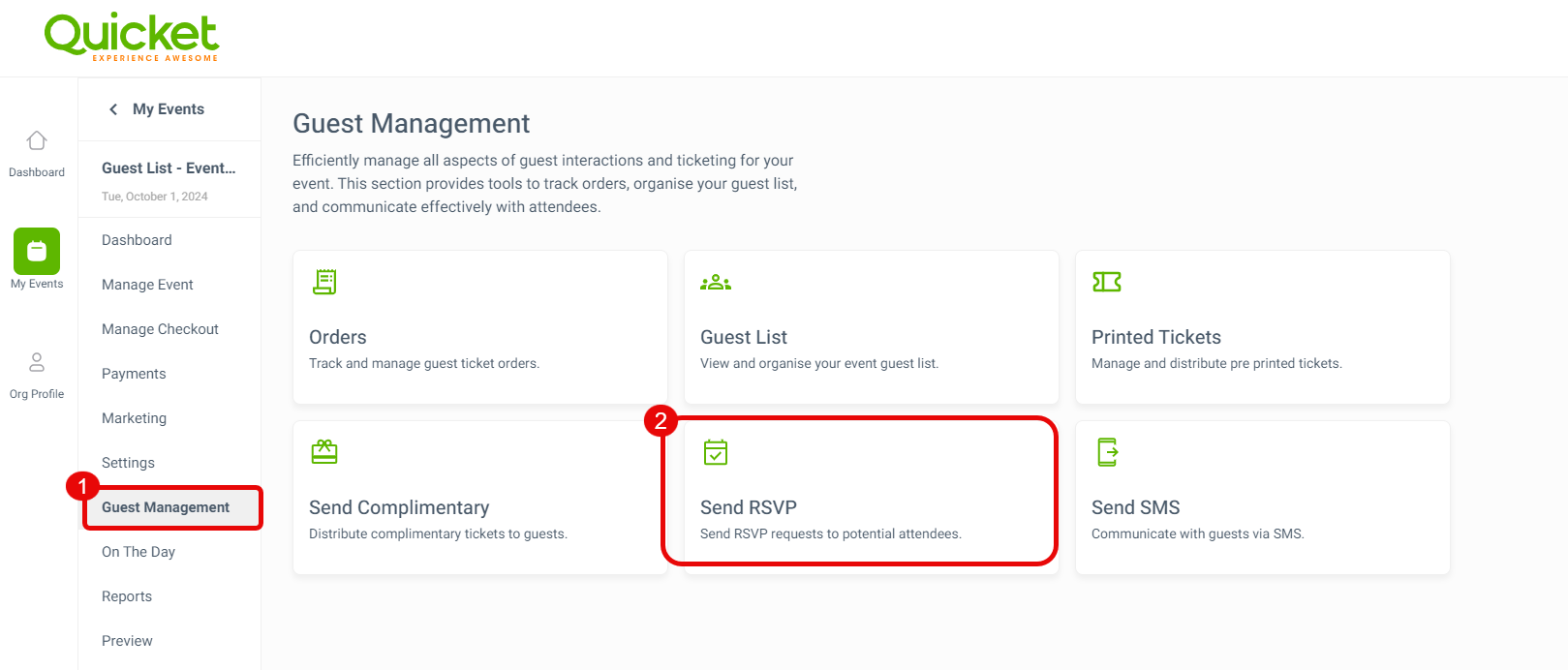
Guests will receive an invitation asking them to confirm or decline. If they accept, Quicket sends them the complimentary tickets you've assigned.
Require ticket information
Switch Require ticket info on if guests need to provide additional ticket-holder information before claiming their tickets.
Set an expiry date
Set an expiry date if guests need to respond by a certain time.
Expired, unconfirmed invitations can then release the reserved tickets so they don't unnecessarily reduce your available capacity.
RSVP limits
You can send up to 200 RSVPs per event through your Quicket account.
For larger invitation lists, connect a Mandrill account.
RSVPs affect capacity
An RSVP reserves the relevant ticket allocation while you're waiting for the guest's response.
This means RSVPs count towards both your event capacity and individual ticket quantities.
What’s next?
Continue managing invitations, complimentary tickets and your guest list.